How to Test WiFi Latency, Jitter, and Packet Loss
A Complete Diagnostic Guide for Homes, Offices, and Mission-Critical Networks
A WiFi connection can show impressive download and upload speeds on a standard speed test while still dropping Zoom calls, lagging during online gaming, stuttering on VoIP phones, and freezing remote desktop sessions. Learn how to pinpoint the real root cause of your connection issues by measuring latency, jitter, and packet loss like a professional network engineer.
Experiencing Lag, Jitter, or Connection Drops in the UAE?
Connect with certified network engineers for on-site RF spectrum audits, latency diagnostics, WiFi 6/7 upgrades, and commercial network optimization across Dubai, Abu Dhabi, Sharjah, and all Northern Emirates.
support@fastwifi.ae | Call or WhatsApp: +971 54 329 7829 | Serving All Over the UAE
A WiFi connection can show good download and upload speeds while still performing poorly during video calls, online gaming, VoIP calls, remote work, and other real-time activities. Many users in Dubai apartments, expansive villas in Abu Dhabi, or commercial offices in Business Bay assume that paying for a 500 Mbps or 1 Gbps fiber subscription guarantees flawless performance. Yet, when opening Microsoft Teams, launching a cloud CRM, or dialing out via an IP phone, the audio cuts out, video freezes, and interactive connections drop.
This happens because raw bandwidth (speed) only measures how much data can travel down the pipe at once. In contrast, connection quality is dictated by three critical, often-overlooked network metrics:
- Latency: How long data takes to travel between your device and a destination server and return (round-trip time).
- Jitter: The statistical variation in latency over consecutive packets—representing how inconsistently data arrives.
- Packet Loss: The percentage of data packets sent that fail to reach their intended destination, forcing costly retransmissions.
Testing these three measurements can help determine whether your WiFi problems are caused by local wireless interference, network congestion, weak signal strength, router hardware issues, physical cabling defects, or a problem upstream with your telecom provider.
Need a complete, professional network diagnostic on-site?
FastWiFi evaluates your local RF environment, inspects data cabling, and analyzes latency spikes with same-day engineer visits across the UAE.
WhatsApp Us Call UsWhat Is WiFi Latency?
Latency is the time required for a data packet to travel from your device to another destination and return. It is measured in milliseconds (ms) and is colloquially referred to as "ping."
In wireless networks, latency includes the airtime delay of sending radio frames, the processing time required by your wireless access point and core router, and the physical transit time across optical fiber links to external cloud data centers.
General Latency Guidelines:
- Under 20 ms: Excellent for most real-time applications, cloud gaming, and VoIP.
- 20–50 ms: Generally very good; seamless for video meetings and enterprise software.
- 50–100 ms: Usually acceptable for standard browsing and streaming, but gaming may feel slightly sluggish.
- 100–150 ms: Noticeable delay occurs; conversational pauses happen during voice and video calls.
- Over 150 ms: Can severely affect calls, gaming, interactive applications, and remote desktops.
Low latency is essential for video conferencing, VoIP calls, online competitive gaming, remote desktop protocols (RDP/Citrix), cloud ERP applications, and real-time business communication platforms.
What Is WiFi Jitter?
Jitter is the variation in packet arrival time. In an ideal wireless network, data packets travel at constant, predictable intervals. In real-world environments, RF interference and buffer congestion cause packets to arrive out of order or with erratic delays.
For example, imagine that consecutive packets arrive with these round-trip delays:
20 ms → 22 ms → 21 ms → 65 ms → 24 ms
While your average latency might register at a seemingly acceptable 30 ms, that single jump to 65 ms represents a sudden delay spike. Real-time protocols cannot wait for lagging packets; they simply drop them.
High jitter results in:
- Choppy, robotic-sounding voice calls on Zoom, Teams, and VoIP phones
- Frozen video frames that abruptly fast-forward to catch up
- Noticeable audio latency and echo during conference presentations
- Rubber-banding and desynchronization in online gaming
- Unstable, fragile connections across remote desktop sessions
What Is Packet Loss?
Packet loss occurs when data packets traveling across the network fail to reach their destination. In wireless networks, this typically happens when radio frames collide due to RF interference, run into weak signal thresholds, or are dropped by an overwhelmed router buffer.
For example, if your device transmits 100 packets and 2 do not arrive, the packet loss rate is approximately 2%. While a 1% or 2% loss rate might barely be noticed while loading a static webpage, it immediately disrupts real-time traffic.
Packet loss leads to:
- Dropped VoIP calls and missing syllables during speech
- Video call interruptions, pixelated video feeds, and dropped streams
- Sluggish web application response times caused by TCP retransmissions
- Glitches, teleporting, and disconnections in multiplayer online gaming
- Unstable connections that force VPN client software to constantly reconnect
How to Test WiFi Latency, Jitter, and Packet Loss
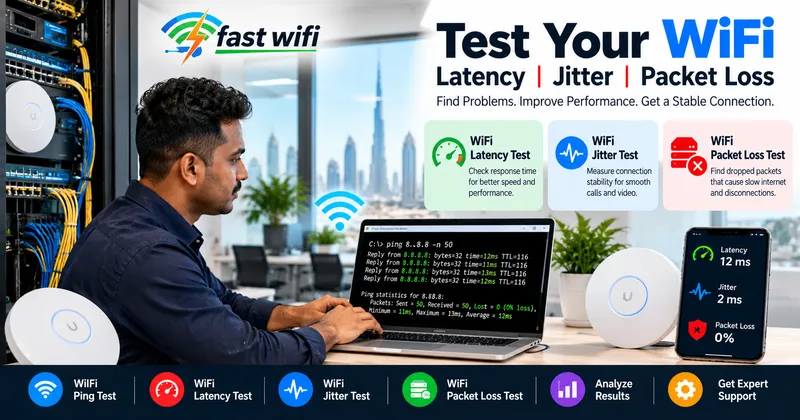
You do not need specialized enterprise software to run preliminary diagnostics. Built-in command line tools on your computer provide powerful, accurate measurements.
Step 1: Test Your Local Router Before Testing the Internet
This is the single most important diagnostic step: isolate your local wireless link from your external internet connection.
First, open Command Prompt (Windows) or Terminal (macOS) and ping your local gateway router (typically 192.168.1.1 or 192.168.0.1):
ping 192.168.1.1 -n 50 (On macOS/Linux: ping -c 50 192.168.1.1)
Next, run an identical test to a stable external internet destination, such as Google's Public DNS:
ping 8.8.8.8 -n 50 (On macOS/Linux: ping -c 50 8.8.8.8)
Interpreting the Results:
Case A: If pinging your router shows an average of 1–3 ms with 0% packet loss, but pinging 8.8.8.8 shows 120 ms latency and 5% packet loss, your local WiFi is operating properly. The problem lies with your upstream internet service provider or external routing.
Case B: If pinging your local router already exhibits 40–90 ms spikes, fluctuating response times, or packet loss, the issue is strictly inside your local wireless environment—such as RF interference, dead zones, or access point overload.
Step 2: Test WiFi Across Different Physical Locations
WiFi performance varies drastically depending on your physical location inside a building. In UAE villas and offices, thick concrete columns, double-brick walls, and metal elevator shafts heavily attenuate wireless signals.
Perform the 50-packet ping test in multiple areas:
- Directly next to the main router or access point (baseline test)
- Inside the executive office or home study
- In secondary bedrooms, majlis halls, or meeting rooms
- On upper floors or in basement lounges
- Near outdoor garden patios, pools, or balconies
If latency and packet loss increase significantly as you move away from the router, your network suffers from physical coverage degradation, requiring WiFi range extension or hardwired access points.
Step 3: Compare Directly Against a Wired Ethernet Connection
A wired Ethernet cable provides the ultimate control test. Plug a laptop directly into your router or managed switch using a certified Cat6 cable and repeat the ping tests.
- If Ethernet is perfect but WiFi suffers: You have an over-the-air problem: RF channel contention, poor access point placement, weak signal, or client device roaming failures.
- If both Ethernet and WiFi suffer: Your problem is upstream: ISP throttling, router processor exhaustion, bad DNS resolution, or a faulty optical fiber line.
Need a certified network engineer to diagnose your network?
FastWiFi utilizes enterprise Fluke cable analyzers, spectrum scanners, and active throughput meters to eliminate latency, jitter, and packet loss.
WhatsApp Us Call UsUnderstanding BSS Coloring and Spatial Reuse in Dense Networks
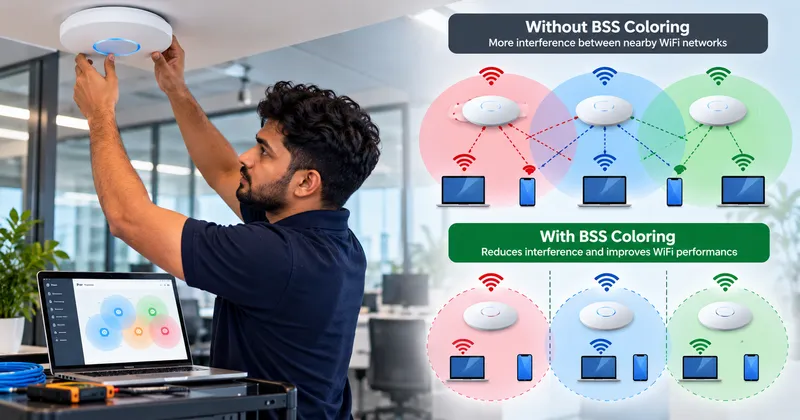
In high-density environments like apartment buildings in Downtown Dubai or multi-tenant corporate offices in DIFC, high latency and jitter are frequently caused by Co-Channel Interference (CCI). When multiple neighboring routers broadcast on the same wireless channels, traditional WiFi mechanisms force devices to wait until the channel is completely quiet before transmitting.
Modern WiFi 6 (802.11ax) introduces BSS Coloring (Basic Service Set Coloring). Compatible devices assign a digital "color" tag (a 6-bit numerical identifier from 1 to 63) to their transmissions. When your laptop detects a transmission on the same channel:
- Same BSS Color: The transmission belongs to your own wireless network; your device pauses to prevent data collisions.
- Different BSS Color: The transmission belongs to a neighboring network. If that signal is sufficiently weak, your device can transmit simultaneously through Spatial Reuse rather than waiting unnecessarily.
This significantly reduces airtime wait times, lowers latency spikes, and improves channel efficiency in congested residential and commercial environments.
Traditional WiFi vs. WiFi 6 with BSS Coloring
| Feature | Traditional WiFi (WiFi 4 / 5) | WiFi 6 with BSS Coloring |
|---|---|---|
| Nearby Network Identification | Limited; treats all RF noise equally | Improved; tags packets with BSS colors |
| Co-Channel Interference Handling | Forces devices to wait indefinitely | More efficient; allows concurrent transmission |
| Spatial Reuse | Very limited | Substantially improved channel utilization |
| Dense Environment Latency | Severe latency spikes under load | Predictable, low-latency performance |
How to Improve WiFi Latency, Jitter, and Packet Loss
If your diagnostic tests reveal high latency, jitter spikes, or packet loss, implement these practical technical improvements:
- Deploy Hardwired Access Points: Eliminate wireless repeaters. Plug commercial access points directly into your core switch using solid copper Cat6/Cat6A cabling.
- Optimize Channel Allocation: Switch away from saturated 2.4 GHz bands and crowded 5 GHz channels. Utilize non-overlapping 20 MHz or 40 MHz channel widths in dense apartment buildings to avoid co-channel congestion.
- Calibrate Transmit Power: Cranking your access points to maximum power often increases interference with neighboring units. Lowering transmit power creates clean cell boundaries, enabling faster roaming.
- Upgrade to WiFi 6 / 6E / 7 Hardware: Modern access points featuring OFDMA and BSS Coloring schedule multi-device traffic simultaneously, drastically lowering ping times.
- Separate Critical Traffic with VLANs: Prioritize mission-critical video calls and VoIP phones above guest browsing and IoT smart devices using Quality of Service (QoS) rules.
- Perform an On-Site WiFi Site Survey: Professional RF heat-mapping identifies hidden attenuation points, rogue devices, and channel clashes that basic speed tests can never reveal.
Brands We Support
We work with almost every popular router, access point, networking, and WiFi system brand available in the UAE market:
We Serve
Enterprise wireless installations, low-latency cabling, and network optimization across all key sectors:
Serving All Over the UAE — Finding a Reliable Network Specialist Near Me
Whether you are searching for an experienced WiFi technician near me, require emergency network diagnostics, or need low-latency cabling in Dubai, Abu Dhabi, or Sharjah, FastWiFi delivers rapid on-site dispatch across all seven Emirates:
Dubai:
Business Bay, Downtown Dubai, DIFC, Dubai Marina, JLT (Jumeirah Lake Towers), JBR, Palm Jumeirah, Dubai Media City, Dubai Internet City, Dubai Knowledge Park, Al Barsha, Al Quoz, Deira, Bur Dubai, Silicon Oasis, JVC, Dubai South, DWC, DIP, Al Qusais, Al Twar, Al Warqa, Nad Al Hamar, Tilal Al Ghaf, Damac Hills 2, Dubai City Walk, Dubai Hills Estate, Discovery Gardens, Arabian Ranches, Oud Metha, Al Khawaneej, Al Mizhar, Muhaisnah, Sobha Hartland, Meydan, Emaar South, Umm Ramool, Umm Al Sheif, Al Bada'a, Al Hudaiba, Dubai Science Park.
Abu Dhabi :
Al Maryah Island, Reem Island, Yas Island, Saadiyat Island, Khalifa City, Mussafah Industrial Area, Al Raha Beach, Mohammed Bin Zayed City (MBZ), KIZAD, ICAD, Corniche, Al Bateen, Al Khalidiyah.
Sharjah :
Al Majaz, Muwaileh Commercial, Al Nahda, Al Khan, Al Taawun, Al Qasimia, Sharjah Waterfront City, University City, SAIF Zone, Industrial Areas 1 to 18.
Northern Emirates:
Ajman: Aalia, Aamra, Al Nuaimia, Al Rawda, Al Jurf, Al Rashidiya, Al Mowaihat, Al Rumaila, Al Zorah, Manama, Masfout.
Umm Al Quwain: Industrial Area, Al Salama.
Ras Al Khaimah: Al Hamra Village, Al Marjan Island, Nakheel.
Fujairah: City Centre, Port of Fujairah, Dibba.
Our Review Words Across the UAE
"Our corporate office in DIFC was struggling with severe packet loss during Microsoft Teams executive calls. Our speed tests showed 500 Mbps, but our latency was spiking past 140 ms. FastWiFi conducted an in-depth ping and jitter audit, discovered severe co-channel interference on our access points, re-architected our channel widths, and installed Cat6A backhauls. Our latency dropped to a flat 3 ms with 0% packet loss. Truly exceptional technical work!"
— Chief Information Officer, Financial Consultancy, DIFC, Dubai
"We had terrible rubber-banding while gaming and video call dropouts in our villa in Jumeirah. FastWiFi tested our local router versus external DNS servers and proved our WiFi repeater was dropping 12% of all data packets. They replaced it with a hardwired enterprise WiFi 6 access point setup. Everything now runs with zero latency."
— Homeowner, Jumeirah 1, Dubai
Expert Support Beyond Installation and Delivery
Reliable Ongoing Support After Installation
Our commitment doesn’t end with installation. We provide reliable ongoing support and maintenance to help keep your network fast, secure, stable, and performing at its best throughout the year. Whether you need troubleshooting, optimization, upgrades, or routine maintenance, our team is here to help keep your network running smoothly.
Every structured cabling project, access point installation, and enterprise wireless network we deploy includes systematic cable labeling, Fluke certification reports, and dedicated annual maintenance support options across the UAE.
Frequently Asked Questions
Why does my WiFi show full speed on a speed test but still lag during Zoom calls or gaming?
Traditional speed tests only measure burst throughput (how many megabytes can download over a short burst). Real-time applications like Zoom, Microsoft Teams, VoIP, and online gaming depend entirely on continuous, unbroken packet delivery. If your connection suffers from high jitter (latency swings) or even 2% to 3% packet loss, audio syllables drop and video freezes, even if your download speed measures 500 Mbps.
Can I get an experienced network engineer near me in Dubai or Abu Dhabi today to diagnose my connection?
Yes. FastWiFi maintains dedicated mobile technical units operating daily throughout Dubai, Abu Dhabi, Sharjah, and the Northern Emirates. We provide same-day on-site diagnostics to test your local gateway, inspect physical cabling, scan RF spectrum congestion, and eliminate latency bottlenecks.
What is your process for testing and isolating network packet loss?
We use a tiered diagnostic protocol: first, we send sustained packet bursts directly to your local router gateway over WiFi to measure local wireless latency and packet drops. Next, we test the identical path over a physical Cat6 Ethernet cable to isolate the wireless radio environment from your physical router. Finally, we ping external telecom gateways and cloud hosts to isolate whether the fault is local, in your cabling, or with your internet provider's optical fiber.
How does BSS Coloring in WiFi 6 reduce latency in crowded apartments?
In high-density apartment buildings, dozens of routers compete for the same radio frequencies. In older WiFi generations, your router pauses transmission every time it hears any neighbor device on the channel. WiFi 6 uses BSS Coloring to digitally tag your network packets. If a detected transmission has a different "color" and is sufficiently weak, your devices transmit simultaneously through Spatial Reuse, slashing wait times and ping spikes.
Do you offer maintenance contracts (AMC) to continuously monitor latency and packet loss for businesses?
Yes. Our commercial annual maintenance contracts include scheduled latency and jitter audits, access point firmware patching, RF channel re-optimization, bandwidth quality-of-service tuning, and priority emergency dispatch to ensure your business communication runs smoothly year-round.
Our Specialized Network & Infrastructure Services
Eliminate WiFi Latency, Jitter, and Packet Loss Today
Connect with our certified network engineers today for an on-site ping diagnostic, RF spectrum analysis, access point installation, or enterprise network optimization across the UAE.
Related Network Services
WiFi Latency Troubleshooting Dubai | Jitter Diagnostics UAE | Packet Loss Repair Abu Dhabi | Access Point Installation Near Me | Cat6A Structured Cabling Business Bay | WiFi 6 BSS Coloring Optimization | Ping Test Analysis Dubai Marina | Low Voltage Network Contractor UAE | VoIP Jitter Reduction Sharjah | Gaming Ping Optimization Dubai | Enterprise WiFi Troubleshooting.
Popular Searches
How to test WiFi latency and packet loss, fix high ping on WiFi Dubai, why is my Teams call lagging on fast internet, how to stop jitter on VoIP phones, WiFi technician near me, difference between ping and jitter, fix packet loss on Du and Etisalat, best access points for low latency gaming UAE.